Reading and Writing Excel in ABAP

Excel requirements in ABAP rarely start as architecture discussions. Someone needs an upload template. Someone wants the nightly job to mail an Excel file instead of a spool. Someone has a business file that is "just Excel", which usually means "please make the backend understand this without making the user change how they work".
That used to be where the options became awkward. One API was good enough for a quick read, another path was tied to an ALV export, and richer output often meant pulling in an external dependency like abap2xlsx. Each choice made sense in its own corner, but none of them felt like the standard answer for "take this internal table and produce an Excel file" or "take this Excel file and fill this typed table".
The XCO XLSX API is SAP's released answer to that everyday case.1 The entry point is XCO_CP_XLSX; selection patterns, read transformations, and write transformations live behind XCO_CP_XLSX_SELECTION, XCO_CP_XLSX_READ_ACCESS, and XCO_CP_XLSX_WRITE_ACCESS. You still need to understand what shape of Excel file it produces and consumes, but the basic flow is now one coherent API instead of a tour through older Excel-adjacent utilities.
What the API gives you
The useful way to read the API is not as "one class that reads Excel", but as a small set of file and worksheet abstractions that fit together:
| Area | What it covers | When it matters |
|---|---|---|
| Document handles | Create an empty XLSX document or open file content from an xstring. | This is the boundary to uploads, downloads, mail attachments, OData streams, and stored binary content. |
| Worksheets | Address Excel sheets by position, and on the read side by name; check exists( ) before consuming an optional sheet. | This is where single-sheet imports, multi-sheet files, and template uploads with known sheet names become explicit. |
| Coordinates and cursors | Build typed row/column coordinates and move a cursor through a worksheet. | Use this for targeted cells, template anchors, or hand-written loops that do not map cleanly to a table-shaped block. |
| Selections and streams | Select a rectangular area with a pattern, then consume it as a row stream; read selections also expose a cell stream. | This is the main table-shaped path and the one the examples below use. |
| Value transformations | Choose how cell values become ABAP values and how ABAP values become Excel values. | The default is best_effort; the details matter enough that they get their own section below. |
| Write-side Excel features | The write API also includes adding worksheets, styling cells, validation lists, protection, alignment, borders, and related Excel file shaping features.2 | Useful for generated files that should be more than raw data, but check the target release before relying on every write feature. |
This post goes deeper on the common row-stream read/write path because that is the case most ABAP code needs first. For cursor-based cell access and cell streams, SAP Help has the read-access details.3 For styling, validation, and the newer write-side Excel features, the write-access page is the better implementation reference.2
Writing an Excel file from an internal table
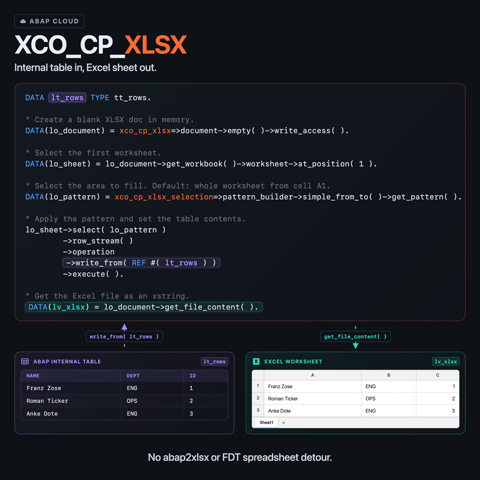
The smallest useful write call needs three things: an empty document, the first worksheet, and a row stream that writes an internal table into cells.
TYPES:
  BEGIN OF ty_row,
    name TYPE string,
    dept TYPE string,
    id   TYPE i,
  END OF ty_row,
  tt_rows TYPE STANDARD TABLE OF ty_row WITH EMPTY KEY.

DATA(lt_rows) = VALUE tt_rows(
  ( name = 'Franz Zose'   dept = 'ENG' id = 1 )
  ( name = 'Roman Ticker' dept = 'OPS' id = 2 )
  ( name = 'Anke Dote'    dept = 'ENG' id = 3 ) ).

" Create a new XLSX document and open the write API for it.
DATA(lo_document) = xco_cp_xlsx=>document->empty( )->write_access( ).

" Worksheet position 1 is the first sheet tab, not cell A1.
DATA(lo_sheet) = lo_document->get_workbook( )->worksheet->at_position( 1 ).

" Without bounds, the selection starts at A1 and spans the worksheet.
DATA(lo_pattern) = xco_cp_xlsx_selection=>pattern_builder->simple_from_to(
                    )->get_pattern( ).

lo_sheet->select( lo_pattern
          )->row_stream(
          )->operation->write_from( REF #( lt_rows )
          )->execute( ).

DATA(lv_xlsx) = lo_document->get_file_content( ).
lv_xlsx is an xstring containing the Excel file content. From here it can go into an OData stream response, a mail attachment, an RFC return parameter, or a frontend download in a classic SAP GUI flow.
A few things that are worth being explicit about:
- The pattern returned by an unbounded
simple_from_to( )covers the whole sheet. The write stream then starts atA1and walks downward, one structure component per column, one table row per worksheet row. - The column order is the structure component order. There is no header row written automatically. If you want labels in row 1, write them separately, for example with a cursor or with a dedicated character-like export row type.
- The row stream uses the default
best_efforttransformation. The conversion rules are covered below; nested structures, references, and helper fields should be mapped into a flat Excel row type first.
Reading an Excel file back
The read side mirrors the write side. Hand the xstring to for_file_content, request read_access, pick a worksheet, select a range, and stream rows into an internal table reference.
DATA lt_imported_rows TYPE tt_rows.

" Open the XLSX xstring for reading.
DATA(lo_workbook) = xco_cp_xlsx=>document->for_file_content( lv_xlsx
                    )->read_access(
                    )->get_workbook( ).

" Worksheet position 1 is the first sheet tab.
DATA(lo_sheet) = lo_workbook->worksheet->at_position( 1 ).

DATA(lo_pattern) = xco_cp_xlsx_selection=>pattern_builder->simple_from_to(
                    )->get_pattern( ).

lo_sheet->select( lo_pattern
          )->row_stream(
          )->operation->write_to( REF #( lt_imported_rows )
          )->execute( ).
Against the Excel file produced above, lt_imported_rows contains the same three rows in the same order, with id written back into an i component. The conversion is done by the default read transformation. For typed internal tables that match the worksheet shape, that default is often enough.
For ad hoc reads, the read-side worksheet factory exposes both at_position( i ) and for_name( 'Sheet1' ). The handle itself is cheap to obtain; exists( ) is where you check whether the sheet is actually present before trying to consume it.
Pattern builder, not range string
simple_from_to is the pattern builder to start with.3 It takes optional column and row bounds, all expressed through cl_xco_xlsx_coordinate:
DATA(lo_range) = xco_cp_xlsx_selection=>pattern_builder->simple_from_to(
                  )->from_column( xco_cp_xlsx=>coordinate->for_alphabetic_value( 'B' )
                  )->to_column(   xco_cp_xlsx=>coordinate->for_alphabetic_value( 'D' )
                  )->from_row(    xco_cp_xlsx=>coordinate->for_numeric_value( 2 )
                  )->get_pattern( ).

lo_sheet->select( lo_range
        )->row_stream(
        )->operation->write_to( REF #( lt_imported_rows )
        )->execute( ).
That selection covers B2 downward across columns B to D, and you pass it to the same select( ... ) call used in the read and write examples above. There is no "B2:D" string to parse. Each coordinate is a typed object built through the factory, and the bounds are inclusive on both sides.
Bounded patterns are how you skip a header row when reading, or how you write a block somewhere other than A1. They are also the boundary at which the row stream stops; without an upper row bound, the read stream will walk through the whole worksheet body.
Value transformations: what the API does to your types
The read side exposes three transformations through XCO_CP_XLSX_READ_ACCESS=>value_transformation: identity, string_value, and best_effort.3 They answer different questions, so the choice should be deliberate:
| Transformation | What it does | Default? | When to use it |
|---|---|---|---|
identity | Assigns the worksheet value to the target ABAP field without an additional semantic conversion step. | No. | Use it when the Excel file already stores values in the shape your typed target table expects. |
string_value | Reads each cell as a string value. | No. | Use it for user-maintained uploads where application code should validate, normalize, and convert each value explicitly. |
best_effort | Applies the API's built-in conversion rules for common ABAP types and selected documented cases. | Yes, for read and write access. | Use it for typed row-stream imports and exports where dates, times, units, languages, and elementary numeric or character fields should behave like business values instead of raw cell content. |
With the default best_effort transformation, the following ABAP types get specific handling:
| ABAP type | best_effort behavior |
|---|---|
D | Writes and reads Excel date values as ABAP dates. |
T | Writes and reads Excel time values as ABAP times. |
ABAP_BOOL | Writes worksheet boolean values. |
Data element MSEHI | Uses the CUNIT conversion routine for external unit values. |
Data element SPRAS | Uses the ISOLA conversion routine for external language values. |
C, N, STRING, I, INT8, and P | Writes character-like and documented numeric values directly unless one of the special cases above applies. |
| Floating point values on read | Read floating point values into decfloat fields rather than packed-number fields.3 |
| Unsupported write-side field types | Can raise runtime errors.2 |
The MSEHI and SPRAS rows are intentionally specific. SAP documents those two data elements as best_effort cases; the API is not described as a generic executor for every conversion exit attached to any data element.32
XCO is not a serializer for arbitrary ABAP object graphs. If an export structure contains a reference, a nested structure, or a helper field that only makes sense inside the program, build a separate flat row type for the Excel file and map into it explicitly.
That is also why string_value is often the safer import choice for messy uploads. It postpones the business conversion to your own validation code instead of letting the row stream silently decide what each cell should become.
What the API does not do, at least not yet
The XCO XLSX API is released, but the feature set is not identical across all ABAP products and releases. SAP's BTP ABAP environment blog introduces XCO XLSX read access from release 2208.4 SAP Help documents the broader API for ABAP Platform 2025 FPS01, including write access and richer write-side features.5
That matters when you design the boundary. If your target API surface only offers write access from document->empty( ), the reliable pattern is to read the original data, transform it in ABAP, and write a fresh Excel file. If it offers write access for an existing file, update is still scoped to compatible XLSX content. Excel files created by other tools can contain formatting, validation, formulas, macros, or other features outside the XCO write API's scope, so do not assume XCO can preserve every non-data detail while changing the file.2
Read access has its own security boundary. The API gives you the worksheet data as stored in the Excel file; it is not an application-level validation layer. If uploaded text later goes into a database, an HTML UI, or a generated document, validate and encode it in that downstream context.3
Where the older options still make sense
XCO should be the default starting point for new code that needs released XLSX read/write behavior, especially for ABAP Cloud-style development. The older options are still worth knowing because they solve different problems.
CL_FDT_XL_SPREADSHEET and IF_FDT_DOC_SPREADSHEET are still common in classic code. They come from the FDT/BRF+ area, not from a general-purpose Excel library. That origin explains a lot: if you have worked with Business Rule Framework plus (BRF+) Excel imports, you know how quickly an unexpected file shape can turn into a fragile upload path.
Their useful niche is reading Excel files designed around named cells and named ranges: GET_NAMED_CELL_VALUE, GET_NAMED_RANGE_ITAB, and the related methods map well to human-maintained templates. A sheet with a JobNumber named cell becomes a direct read:
DATA(lo_excel) = NEW cl_fdt_xl_spreadsheet(
                   document_name = 'INPUT.XLSX'
                   xdocument     = lv_xlsx ).
DATA(lv_job) = lo_excel->if_fdt_doc_spreadsheet~get_named_cell_value( 'JobNumber' ).
That does not make CL_FDT_XL_SPREADSHEET the general recommendation. It is not released for ABAP Cloud development.6 SAP KBA 2468709 also calls out concrete failure modes when it is used for custom Excel upload/download scenarios, including blank uploads, corrupted data, and bold values not being recognized.7 Keep it for existing classic code, older systems without XCO XLSX, or narrow named-cell reads where replacing the whole path would add more risk than value.
abap2xlsx is the open-source classic-ABAP library that has carried the richer-formatting load for years.8 On classic AS ABAP and S/4HANA on-premise it remains a sensible pick when the requirements include conditional formatting, charts, embedded images, real worksheet styling, or fidelity round-trips against existing Excel files. The community ABAP Cloud discussions are honest about the gap: abap2xlsx is not a drop-in option for S/4HANA Public Cloud or the BTP ABAP environment, because it leans on classic ABAP APIs that are not part of the Cloud allowlist.9
The practical decision is simple: start with XCO for released read/write flows and typed row streaming when it is available in the target system. Use CL_FDT_XL_SPREADSHEET for existing classic code or older systems where XCO XLSX is not an option. Use abap2xlsx when the system allows a third-party classic ABAP dependency and the Excel requirements are mostly about rich formatting or compatibility beyond XCO's write surface.
Sources
Footnotes
-
SAP Community, How to perform mass upload from an Excel file in a Fiori app in SAP BTP ABAP Environment: Part 1 ↩
-
SAP Help, XLSX for ABAP Platform ↩
-
SAP Community, Development objects are not permitted in ABAP Environment (BTP) Excel upload ↩
-
SAP Knowledge Base, 2468709 - Class CL_FDT_XL_SPREADSHEET used for uploading/downloading Excel ↩
-
abap2xlsx, abap2xlsx on GitHub ↩
-
SAP Community, abap2xlsx alternative in Public Cloud ↩